Managing inbound calls just got a whole lot clearer. We've launched a new visual call flow view, giving you a real-time, top-to-bottom map of exactly what happens when someone dials your number.
If you've ever had to explain your phone system to a new colleague, or troubleshoot why calls weren't getting through, you'll know how difficult it can be to hold the entire logic in your head. Time-based routing, voicemail fallbacks, extension assignments: it all makes sense when you built it, but becomes a puzzle the moment anything goes wrong.
Today we're changing that. The new call flow visualiser gives every user on your account a live, interactive diagram of their inbound call routing, from the moment a call lands on your number right through to where it ends up.
What you can see in the diagram
Every call flow diagram starts at your inbound number and branches out from there. Each node in the tree represents a routing step, and the connections between them show exactly what triggers the next action. Here are some examples of what you might find in your flow diagram, including but not limited to:
Preset schedules
See at a glance whether a preset is active or inactive, with branches showing where calls go in each state.
Time-based routing
Time routes display their schedule pattern alongside match and no-match branches, so you can trace weekend or out-of-hours logic instantly.
Extensions
Named extensions show who is assigned to each step, with a no-answer branch indicating the fallback path.
Voicemail
Voicemail destinations show the mailbox number, name, and the email address where recordings are delivered.
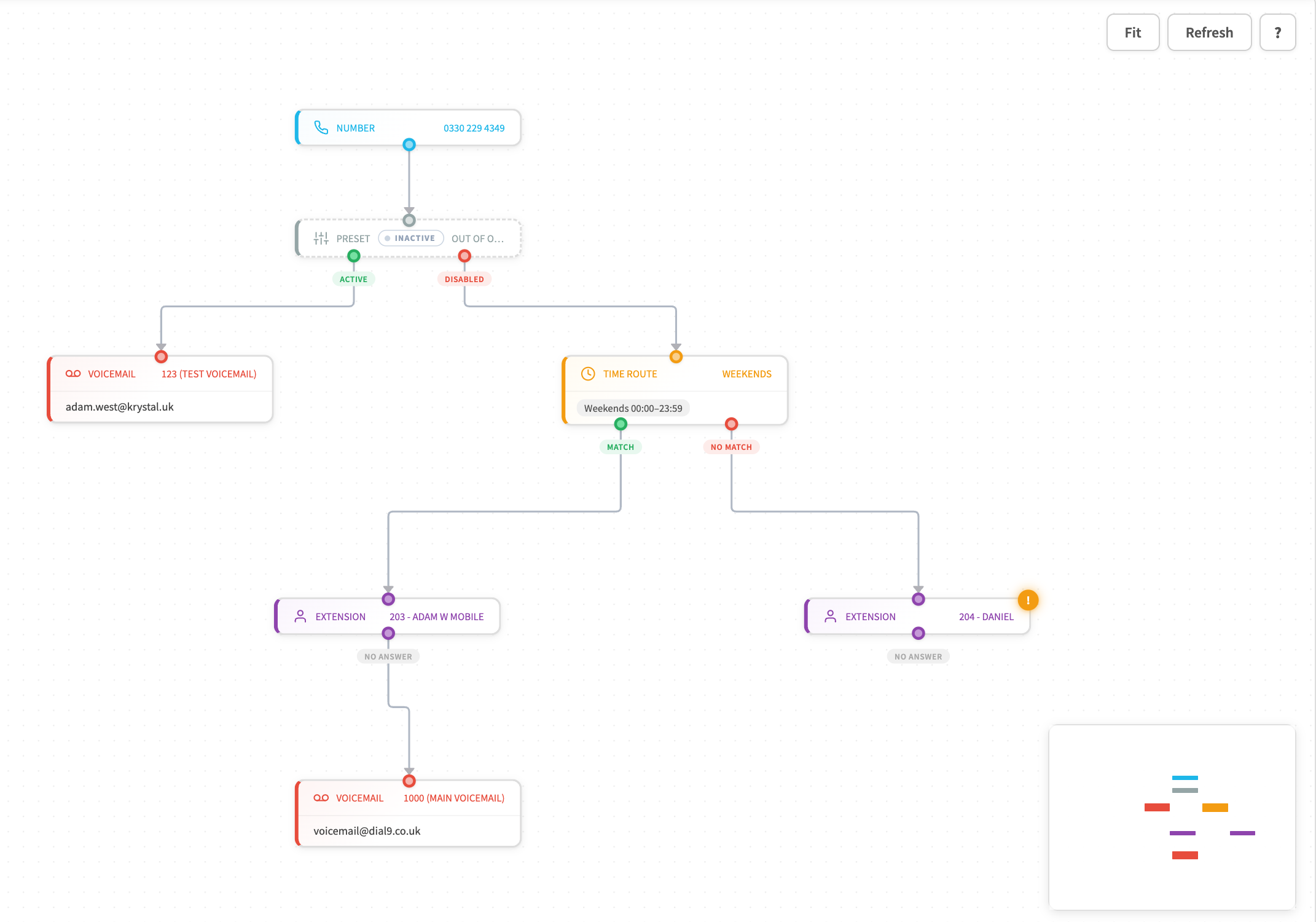
Beyond this, call queues, menus and configured options as well as call groups and other popular features will be displayed within the flow when configured.
Built-in issue detection
The visual view doesn't just show you what your call flow looks like — it also checks it for problems. An issues panel flags any routing gaps it finds, so you can spot and fix them before they affect a real caller.
A common one: an extension with no fallback configured. If nobody picks up and there's nowhere for the call to go, it simply drops. The troubleshooter catches exactly this kind of gap and tells you which node is affected.
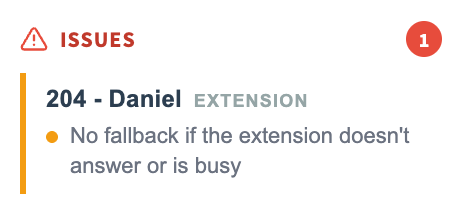
Issues are surfaced alongside the diagram in real time, so there's no separate audit process to run. Open the call flow, see the problems, fix them.
Why this matters for your team
Visibility is the first step to control. When your call routing lives only in configuration menus, it's easy for small misconfigurations to go unnoticed. A voicemail box pointing to an old email address, a weekend route that was never updated after a team reshuffle, or an extension still assigned to someone who left months ago.
With the visual call flow, issues like these become obvious immediately. You can audit your entire setup in seconds rather than clicking through multiple settings screens.
Onboarding new staff? Share the call flow diagram with a new team member and they'll understand your phone system in minutes, no hand-holding required.
Live status, not just structure
The diagram doesn't just show your routing logic. It reflects the current live state of each node too. Preset conditions display whether they're active or disabled right in the diagram, so you can immediately see what's enabled without navigating away from the page.
You'll be able to click on individual routing features as well, to see a animated path from top to bottom.
Where to find it
The call flow view is available now for all numbers on your account. Head to the Numbers section of your dashboard, select any inbound number, and look for the Call Flow tab. The diagram loads automatically, and you can easily click a feature to then navigate to its configuration, and edit it in a new tab.
After making changes, you can easily click the refresh button at the top right to see the new flow immediately.
We'd love to hear what you think!