Slack
With Dial 9's Slack integration, you can receive alerts in a Slack channel when calls happen in your phone system.
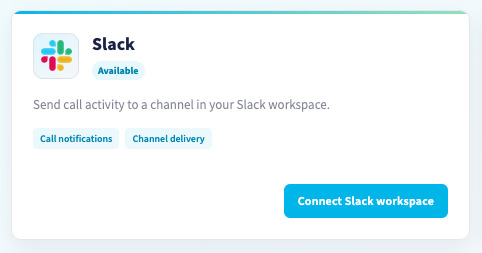
To get started, head to Advanced > Integrations in Dial 9 Connect, then click Connect Slack workspace:
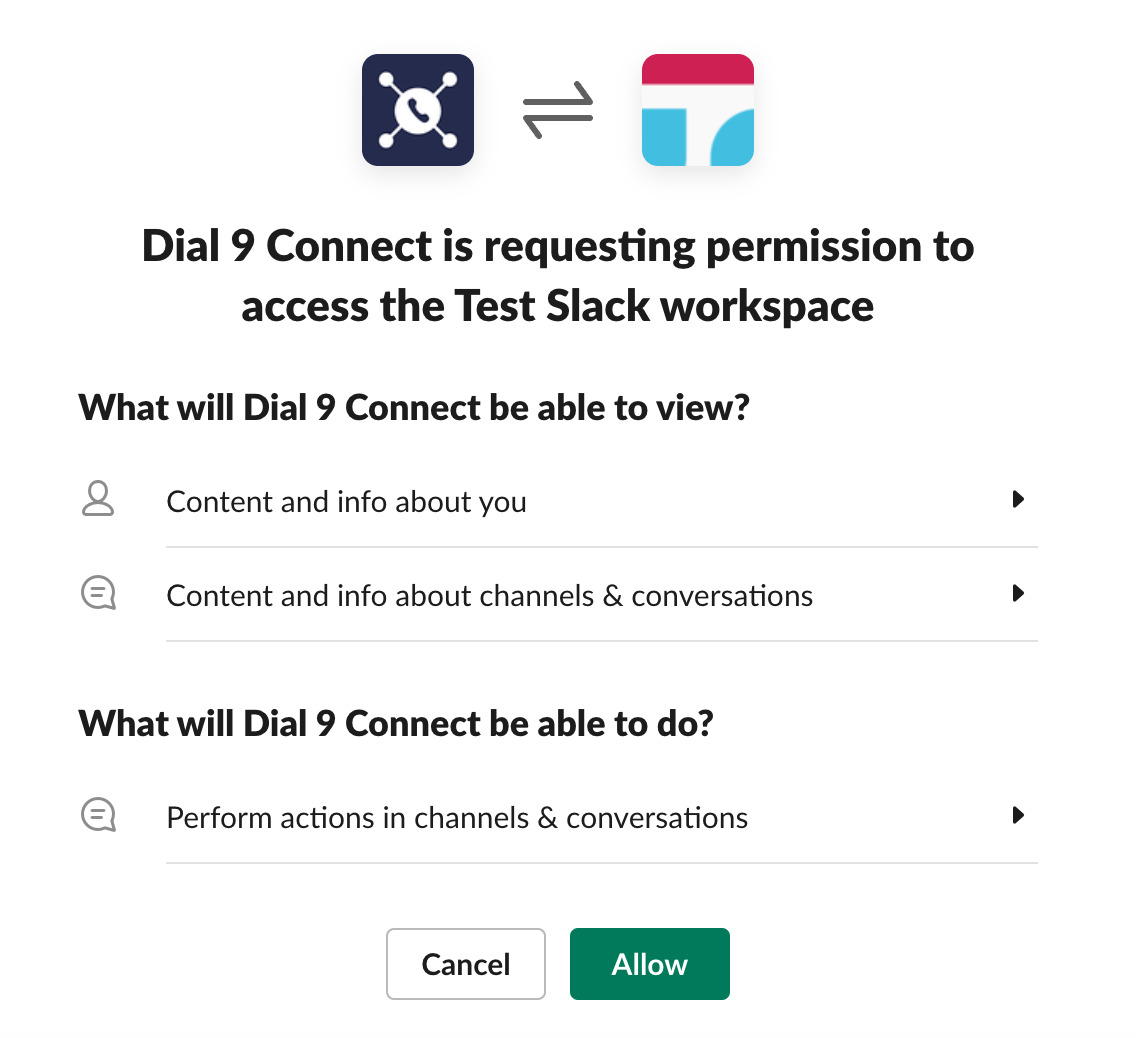
Select Connect a Slack workspace again at the bottom of the next screen and you'll be taken to your Slack account, where you need to authorise and install the Dial 9 Connect app:

Once you've authorised Slack, you'll be able to configure how the integration behaves:
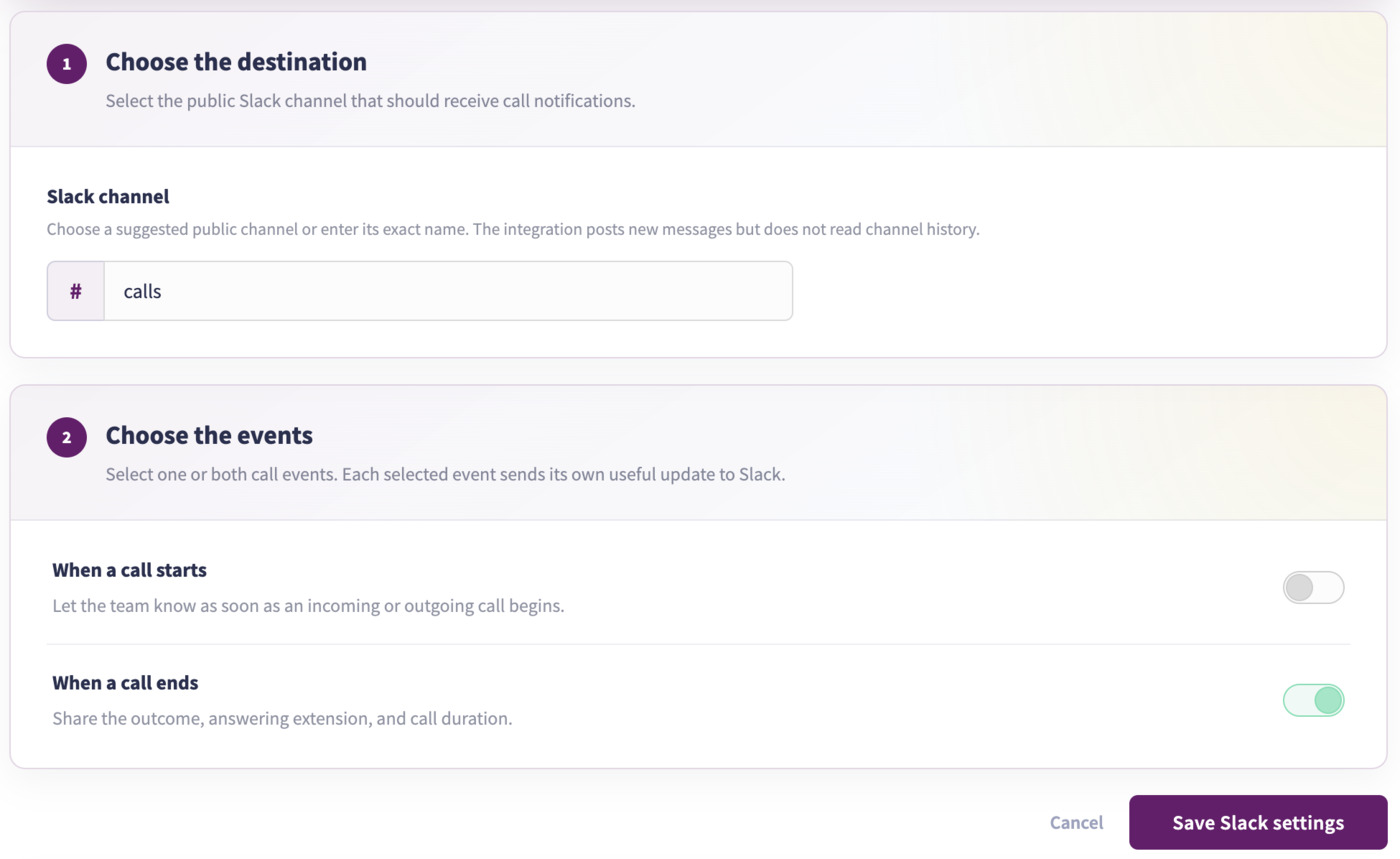
Here, you can choose the channel to post notifications to, as well as the conditions to post them in. The options for conditions are:
- When a call starts
- When a call end
Click Save Slack settings and any future calls, as appropriate will send an alert to your Slack channel.
Editing the Slack integration
If you wish to make changes to your existing Slack integration, head again to Advanced > Integrations, then click Manage next to the integration, to edit it:
Here, you can update the channel and events to send the notifications for. If you wish to remove the Slack integration, you can click Remove Slack. You will need to uninstall and reinstall the integration if you wish to change the team that the integration is linked to.